
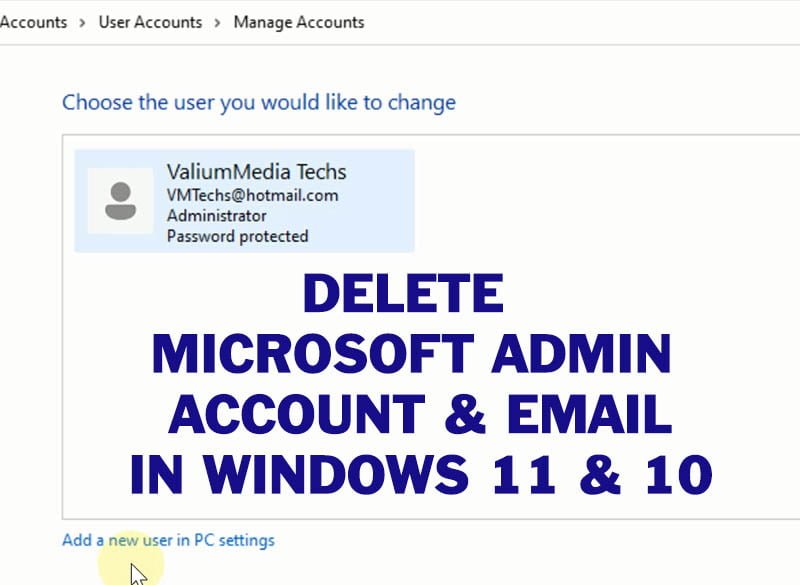
Sometimes, users may want to change or remove the administrator Microsoft account from their windows 11 or windows 10 computers for any reason. However, removing Microsoft admin account can’t accomplish in one step, especially if you are logged in using that account.
This topic will show you how to remove or delete Microsoft Administrator account and how to delete Microsoft account email in windows 11 & Windows 10 using CMD, PowerShell, Control Panel and Computer Management.
I will guide with 4 different ways to remove Microsoft Administrator account and email from your Hp, Lenovo, Asus, Acer laptop or desktop, in order to change Microsoft account in windows 11 and windows 10 OS.
How to Remove Microsoft Account from Control Panel?
- To delete user account using Control panel, do the followings:
- Press “Windows logo + R” keys from keyboard to open “Run” tool
- Type “Control Panel” without quotation marks and then press Enter to open the control panel
- Open “User Accounts” and then select “Remove User Accounts” option
- If you have only one account, you can’t delete it until you have added another admin account.
- To add new account, do the followings:
- Click on “Add a new user account in PC settings” option below the list of accounts in control panel, or press Windows Logo + X key from keyboard to open Settings app
- Click on Accounts option from left panel and then select “Other Users” option
- Click on “Add Account” option
- Type a desired new name for the new account in the first text box
- Add a new password for the new account in the second text box, and retype the password in the third text box
- Select any security question and then add an answer to it, after that click Next to create the new user account
- Back to control panel and refresh the display to show the new account
- Select the new account and then click on Change the account type option
- Enable Administrator option and then select Change account type option
- Back to account lists and then select the old account that you want to delete
- Change the account type to Standard
How to fix this error: “Windows can’t delete an account that is currently signed in” ?
- If you are trying to delete the old account before you log in with the new account, you will get an error message saying that: Windows can’t delete an account that is currently signed in. To fix that, do the followings:
- Sign out and then login using the newly created account.
- Select the old user account and then click on Delete the account option
- After that, open control panel and navigate to User Accounts list
- If you want to keep all files of old account, select Keep Files option, or select Delete Files option to delete the selected account and all associated files.
- Click on Delete account to confirm deletion.
- As you can see on the video, the admin account and associated Microsoft account deleted successfully.
How to Delete User Account from Computer Management?
- To delete user account using Computer Management console, do the followings:
- Right click on Start menu (or press Windows Logo + X key from keyboard) and then select “Computer Management” option
- Expand Local User and Groups node under Computer Management option an then select “Users” node
- Right click on the account that you want to delete and then select “Delete” option
How to Remove Microsoft Account from Windows 11 Using Command Prompt?
- To remove administrator account using CMD, do the followings:
- Type CMD into search box and then run Command Prompt as administrator
- Type this command and press Enter to delete the Microsoft account:
- NET USER <UserAccount> /DELETE
- For example, to delete an account named ValiumMedia, type this command and press enter:
- NET USER VALIUMMEDIA /DELETE
- As you can see on the video, Testing account deleted successfully.
How to Remove Administrator Account Using PowerShell Command?
- To remove User account using PowerShell in windows 11 or windows 10, do the followings:
- Right click on Start menu and then select Windows Terminal (Admin) option
- If you have a user account called VMTechs, you can delete it using the following command:
- REMOVE-LOCALUSER -NAME “VMTechs”
How to Change Microsoft Account in Windows 11 and Windows 10?
- To change Microsoft account email, do the followings:
- Right click on Start icon (or press Windows Logo + X key from keyboard) and then select “Settings” option
- Click on “Accounts” option on the left side panel
- Click on Sign in icon
- Type the new email address and click Next
- Type the password and click Sign in
- Type the local password of current windows user or add a new password if you have not added it previously, and then click Next
- Add a 4-digits login PIN to use it for quick login instead of typing a long password each time you start your computer.
- Here we have done, and the email changed successfully.
Related topics:
- Read this topic to see how to change computer password in windows 10 and windows 11
- How to Reset Forgotten Laptop Password Without Logging in or Losing Data Windows 11/10
VIDEO:
To see how to remove Microsoft admin account and email and how to change admin account in windows 10 or windows 11 step by step, watch this video:


Comments