
Hi everyone;
We may all forget the computer password, and sometimes we may not be able to log in even by using the correct password, especially if there is a problem with the system files. There is no doubt that the first question that comes to our minds is how to reset administrator password on windows 10 or windows 11 without logging in, or how can I change the password for my account from the login or lock screen without losing data, especially if there is no other active administrator account on the computer.
If you are suffering from such a problem, you are in the right place to know how you can bypass the laptop login password in Windows 11, windows 10, windows 8.1 or even windows 7.
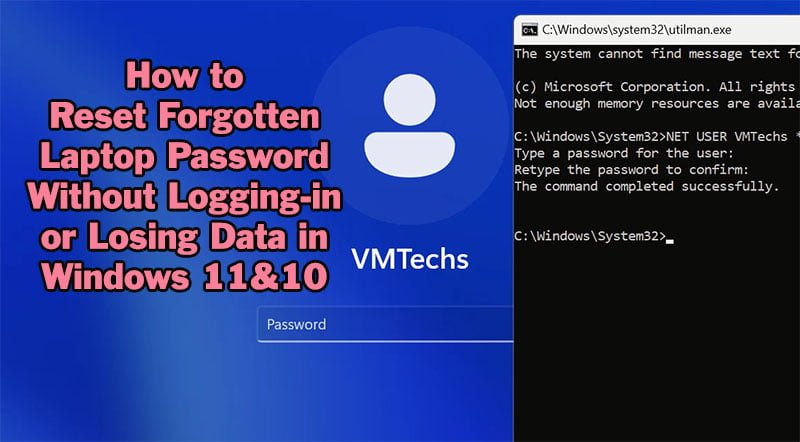
On this topic, you will learn how to reset password in windows 10 and windows 11 easily without logging-in and without losing data.
I will show you how to reset forgotten laptop password of local user account by enabling the build-in administrator account from Recovery Environment, and how to reset forgotten Microsoft account password from lock screen.
To reset your local account password, you will need to boot into Advanced recovery menu as you can see on the next part of this topic; however, to reset Microsoft account password, you have to have an active internet connection in order to send a password reset request from Lock screen, because you can’t change the password using Command prompt as you can do with the local account. Also, you can change Microsoft account password by opening account.live.com link in another computer or in your mobile.
How to Boot into Windows Recovery Environment?
- To reboot into Advanced recovery options from Lock or login screen of windows 10 or windows 11, do the followings:
- Press and hold Shift key from keyboard and restart your computer
- Click on Troubleshoot option and then select Advanced Options
- Open Command Prompt
- If the BitLocker Recovery was enabled in your windows partition, you have to unlock it using your recovery key in order to open the Command Prompt.
- In some older builds of windows 10, you may be asked to enter your account password when opening Command Prompt. So you have to boot from a bootable USB in order to bypass password request.
Read this topic to see how to create a bootable USB using your android mobile
Read this topic to learn how to boot from the bootable USB drive.
How to Enable Administrator Account from Registry?
- After booting into Advanced Recovery Options, open Command Prompt or CMD
- Type BCDEDIT and press enter to identify the letter of windows partition
- From OSDevice line of BCDEDIT result, see which letter after the Partition= to identify your windows partition. If you can see “OSDevice Partition=C:“, then the C is your windows partition
- If the C is your Windows Partition, then execute the following command to change the CMD path into system32 directory in windows partition:
- CD /D C:\Windows\System32\
- Make sucre the path changed successfully
- CD /D C:\Windows\System32\
- Type “Regedit” into command prompt console and press Enter to open Registry editor app
- Expand HKEY_Local_Machine node
- From “File” tab of the Registry editor, select “Load Hive” option
- If you have changed the CMD path successfully in previous command, the Registry Editor app will open into the following path:
- C:\Windows\System32\
- If you have changed the CMD path successfully in previous command, the Registry Editor app will open into the following path:
- Open Config folder and double click the SAM file to load it
- Type SAM2 into text box and then click Ok to load the hive file
- Navigate to the following path:
- HKEY_LOCAL_MACHINE\SAM2\SAM\Domains\Accounts\Users\000001F4
- Right click on the F key and select Modify option, or double click the key to open editing window
- Click by mouse Infront of 11 value to enable line editing
- Press Delete key from keyboard to delete the 11 value
- Type 1 or 10 to change 11 to 10, after that click Ok to save changes
- Select the SAM2 node and then unload it from File tab
- Close regedit and CMD windows, after that, click on Continue option to restart your computer into login screen.
- Select the Administrator account to login to your computer without password
- Click Next and then Accept to continue, after that, change your forgotten password as you will see on the next part.
How to Change Computer Password Using Administrator Account?
- After enabling and then logging-in into the Administrator account as instructed earlier on this topic, you can change password in windows 10 or windows 11 easily as followings:
- Search for CMD using Search box and then open Command Prompt as administrator
- Type NET USER and press enter to show the list of available user accounts in your computer
- Type NET USER followed by the account or user profile name that you want to change its password, followed by the new password and then press Enter. For example, to change password of VMTechs account to 123456789, execute the following command:
- NET USER VMTechs 123456789
- If the user profile name contains two parts with space, you have to add the account name between Quotation marks.
- For example, to change password of ValiumMedia Tech account to 123456789, execute the following command:
- NET USER “ValiumMedia Tech” 123456789
How to Reset Password in Windows 11 & 10 Using CMD?
- To reset password in windows 10 or windows 11, do the followings:
- Boot into Advanced recovery Environment (WinRE) and then open command prompt
- Type “BCDEDIT” and press enter to identify the letter of your windows partition
- If the C is your windows partition:
- Execute the following command to rename the Accessibility Manager app:
- Ren C:\Windows\System32\UtilMan.exe UtilMan.exe.old
- Execute the shown command to duplicate the Command Prompt with the name of UtilMan.exe:
- XCOPY C:\Windows\System32\CMD.exe C:\Windows\System32\UtilMan.exe
- Type F to confirm copying the file
- XCOPY C:\Windows\System32\CMD.exe C:\Windows\System32\UtilMan.exe
- Make sure to replace the C with the letter of your windows partition in the both previous commands
- Execute the following command to rename the Accessibility Manager app:
- Close the CMD window and then click on Continue option to restart your computer into login screen
- Click on the Accessibility icon to start the CMD tool
- Type NET USER followed by account name and asterisk as following:
- NET USER VMTechs *
- Replace VMTechs by your account name
- NET USER VMTechs *
- Type a new password and then press Enter
- Retype the new password again and then press Enter
- Notice that the typed password will not be visible in the CMD console.
- If you want to login without password, just press Enter without typing a password to remove the password login.
- Now, close CMD and log in to your laptop using the newly created password, or press Enter directly if you chose to remove the password login.
NOTE: If you have a Microsoft account linked to your laptop, you can’t change the password using command prompt as you have seen earlier. In this case, you have to reset the password using your Microsoft account email as you will see on the next part.
How to Reset Microsoft Account Password in Windows 10 & 11?
If the Microsoft account password forgotten, you can’t recover or reset it locally using Command Prompt (CMD). Instead, you have to be connected to the internet and then reset your password after confirming your identity using either your recovery email or mobile number.
- To reset Microsoft account password, you have to do the followings:
- From Lock screen, click on “I forgot my password” option
- Type your second recovery email or your mobile number that you have added it as a recovery mean for the linked Microsoft account or email.
- The recovery email is not the same Microsoft email that you are trying to reset its password.
- Open the inbox of the second recovery email or recovery mobile to see the identity confirmation code
- Type the code and then press “Next” to continue
- Add a new password and then click on “Next“
- As you can see on the video, the Microsoft account password has been reset successfully in my computer, and I can login into my computer using the new password.
To learn how to delete Microsoft Account and Email from Windows 10 or Windows 11 PC, read this topic.
VIDEO:
For clear illustration for how to reset forgotten password of local and Microsoft account in windows 10 or windows 11 laptops, watch the following video that shows all methods step by step:



Comments