Skip to content
ValiumMedia Tech
  • Computer
  • Windows 10
  • Windows 11
  • Boot Failure
  • Recovery USB
  • Mobile
  • Download Boot Repair App
  • Computer
  • Windows 10
  • Windows 11
  • Boot Failure
  • Recovery USB
  • Mobile
  • Download Boot Repair App
HomeComputerHow to Change Password in Windows 11 & 10 Laptop
Computer Home Windows 10 Windows 11

How to Change Password in Windows 11 & 10 Laptop

valiummediatech
October 14, 2023 Updated May 17, 2026 1 views 0
How to Change Password in Windows 11 & 10 Laptop
how to change Microsoft & Local account password in windows 11 & 10 laptop

If you are looking for an easy and effective method in how to change windows 11 or windows 10 password, or how to change Microsoft account password in your computer, then you are on the right place.

This topic will show you how to change laptop password in windows 11 and Windows 10 easily.


How to Change Computer Password Windows 10 & Windows 11?

To change password in laptop of windows 11 or windows 10, do the followings:

Press “Ctrl + Alt + Delete keys” from keyboard at the same time to open Security Options

Select on “Change a Password” option

You will get four text boxes, the first box is for the user profile name, the second one is for the old account password (if you have), the third box is for the new password, and the fourth one is to confirm the new password.

Type the old password in the second text box if you have an old password, otherwise, leave it empty

Type a new password in the third text box

Retype the new password in the fourth text box to confirm similarity

Press Enter from keyboard or click on the arrow icon on the fourth text box to change windows 11 or windows 10 password.
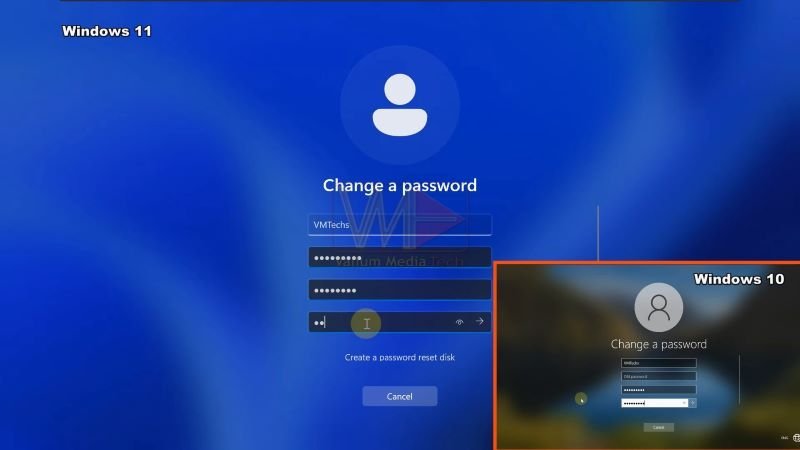
How to change Laptop Password Windows 11 and Windows 10

How to Change Windows Password from Command Prompt?

  • To change windows 10 or windows 11 administrator password from command prompt, do the followings:
    • Type CMD into Search box and then run Command Prompt as administrator
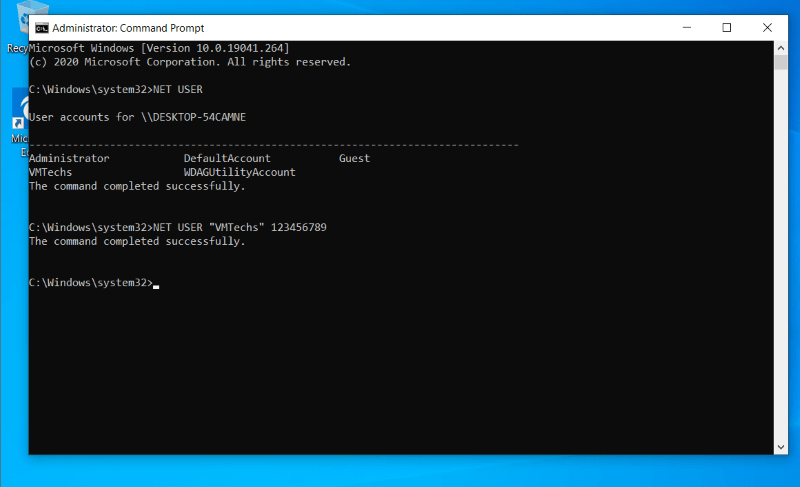
    • Type this command to show the list of user profiles in your computer:
      • NET USER
    • Copy the profile name that you want to change its password
      • You can know the active profile name by opining the Start menu or Computer Settings.
    • Type NET USER followed by one space and paste the user profile name, after that, add a new password and then press Enter. for example, if the name of your account or user profile is VMTechs, and you want to change it’s password into 123456789, then execute this command:
      • NET USER “VMTechs” 123456789
How to Change Windows Password from Command Prompt

How to Change Microsoft Account Password?

If you have logged in using Microsoft account in your computer, you can’t change account password by pressing Ctrl + Alt + Del key as you can do with a local account.

  • Therefore, to change your Microsoft account password in offline mode in windows 10 or windows 11, do the followings:
    • Right click on Start icon or Press Windows + X keys from keyboard and then select Settings option
    • From left panel, select “Accounts” option and then Select “Your Info” option
    • Click on “Sign in with local account instead” and then click on “Next” to continue
    • Type the PIN number or the old login password and then click on “Next” to continue
    • Type your new password and confirm it in the second text box
    • Add a Hint text word or number to help you remember the password if you forget it later, and then click “Next” to continue
    •  Click on Sign out and finish to change your Microsoft account password to local account password.
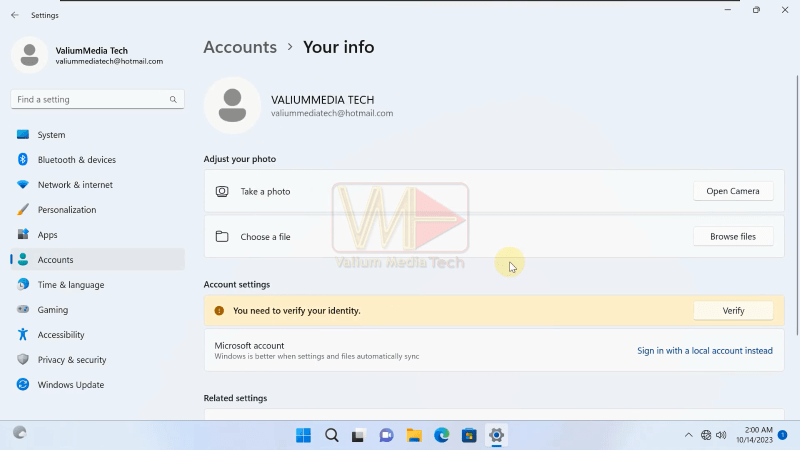
How to Change Microsoft Account Password

Related topics:

  • Read this topic to see How to Remove Microsoft Account and Email in Windows 11 and Windows 10
  • How to Reset Forgotten Laptop Password Without Logging in or Losing Data Windows 11/10

VIDEO:

For more and illustrated details about changing computer password or Microsoft account password in windows 11 or windows 10, watch this video step by step:

Please follow and like us:
error
fb-share-icon
Tweet
fb-share-icon
Tags: #Change Computer Password #Change Microsoft Account Password #Change Windows Password from Command Prompt #How to #How to Change Password #windows 10 #windows 11

Post navigation

Previous:How to Remove Microsoft Account in Windows 11
Next: How to Unlock BitLocker Without Recovery Key and Password

valiummediatech

View all posts

Related Posts

How to Install Windows 11 from USB Pen Drive in any PC

How to Install Windows 11 from USB Pen Drive in any PC

Learn how to download & install windows 11 in any computer using USB pen drive…

How to Fix The File is Too Large for the Destination File System USB Drive

How to Fix The File is Too Large for the Destination File System USB Drive

how to fix this error: “The File is Too Large for the Destination File System”…

How to Install Net Framework 3.5 on Windows 10 Offline Installer

How to Install Net Framework 3.5 on Windows 10 Offline Installer

How to install net framework 3.5 (Includes .net 2.0 and 3.0) offline installer using CMD…

Comments

Leave a Reply Cancel reply

Your email address will not be published. Required fields are marked *

Search

Popular Posts

  • How to Convert MBR to GPT Without Data Loss One-Click Fix All MBR2GPT Errors in Windows 10

    How to Convert MBR to GPT Without Data Loss: One-Click Fix for All MBR2GPT Errors

    10
  • How to Fix 0x8007000D “The Data is Invalid” Error on Windows 11 & 10

    How to Fix 0x8007000D “The Data is Invalid” Error on Windows 11 & 10

    9
  • How to Fix There Was a Problem Resetting Your PC in Windows 11 & 10

    How to Fix There Was a Problem Resetting Your PC | Reset PC to Factory Settings in Windows 10 & 11

    7
  • install net framework 3.5 Offline installer

    How to Install Net Framework 3.5 on Windows 10 Offline Installer

    7
  • How to Install and Use RTL8187 Driver of Alfa Wi-Fi Adapter in Windows 11 & Windows 10

    How to Install and Use RTL8187 Driver of Alfa Wi-Fi Adapter in Windows 11 & 10

    5

Categories

  • Computer (85)
    • Boot Failure (41)
    • Recovery USB (10)
    • Windows 10 (80)
    • Windows 11 (82)
  • Home (84)
  • Mobile (10)
  • Technology (1)
  • Video Production Tools (1)

Subscribe

Get the latest Windows fixes and tips in your inbox.

Popular Tags

Blue Screen error blue screen of death boot loop CMD dot net 3.5 framework How to How to Fix how to install windows 11 install net framework 3.5 offline MBR2GPT net framework 2.0 and 3.5 offline installer for net framework 3.5 reagentc Reagentc /Enable The System Cannot Find the Path Specified windows 10 windows 11 Windows Recovery Environment WINRE.WIM Without Losing Data

Popular Posts

ValiumMedia Tech

Exclusive Fixes for Windows OS Issues!

  • YouTube
  • Facebook
  • Twitter
  • Instagram

Quick Links

  • Home
  • Privacy Policy
  • Contact us
  • About us
  • Download Boot Repair App

Categories

  • Computer
  • Home
  • Windows 11
  • Windows 10
  • Boot Failure

Newsletter

Get the latest Windows tips and fixes delivered to your inbox.

© 2026 ValiumMedia Tech. All rights reserved.